User Profile
Generate a public/private key pair with MobaXterm on Windows
Get MobaXterm — a terminal and key generator application
Your OS does not come with a default terminal and key generator application, so you will need to download and install one. There are many options all of which have their own pros and cons; we suggest you give MobaXterm version ≥ 12.3 a try as it features a key generator, terminal and graphical user interface for data transfers all-in-one. The following steps use the portable version of MobaXterm Home Edition, which is free and does not need to be installed with an installer; just download, unpack and execute. If you want to use another terminal, key generator or data transfer app please consult their manuals.
Launch MobaXterm key pair generator
Check your MobaXterm version is 12.3 or newer as older ones have a known bug and won’t work.
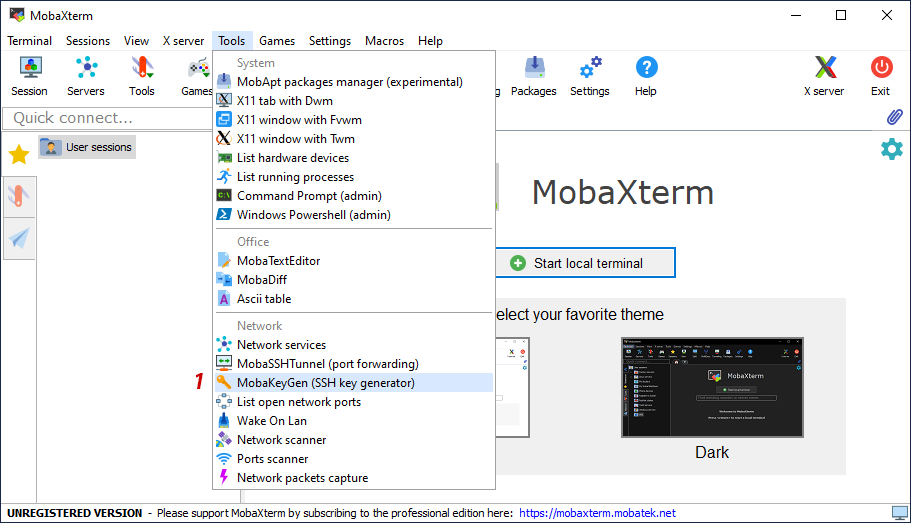
Launch MobaXterm and choose the
MobaKeyGen (SSH key generator)from the tools as shown in the screenshot below.
Configure key pair generator
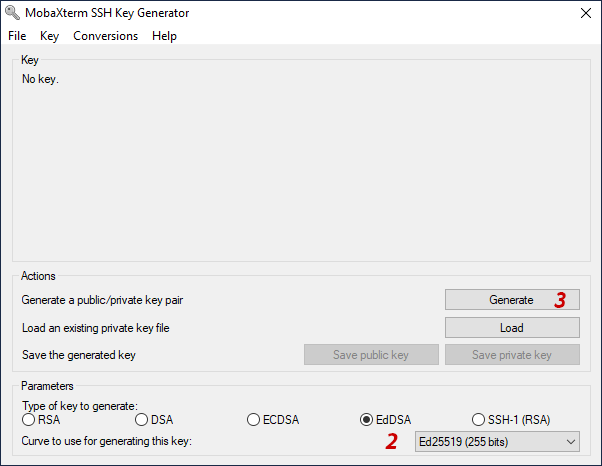
From the parameters section at the bottom of the window choose: Type of key to generate:
ED25519Click the Generate button…
Generate key pair
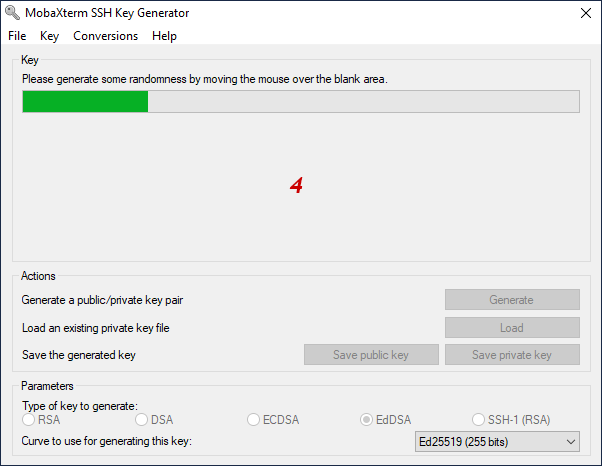
Yes — you really have to move the mouse now: computers are pretty bad at generating random numbers and MobaKeyGen uses the coordinates of your mouse movement as a seed to generate a random number.
Secure private key and save pair to disk
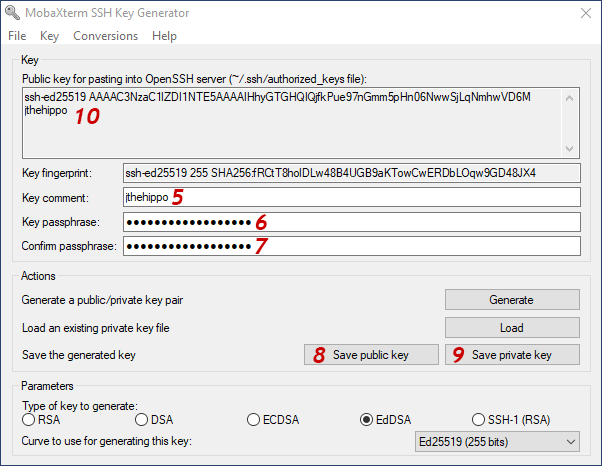
Your key pair was generated.
Replace the comment in “Key comment” with your first initial followed by (optionally your middle name followed by) your family name all in lowercase and without any separators like spaces, dots or underscores.
So e.g. if your name is “Jack Peter Frank the Hippo”, useyour@emailas comment.Secure your private key with a good password before saving the private key. Do not choose a simple password or — even worse — an empty one!
Confirm the password.
Click the Save public key button.
Click the Save private key button.
Select and copy all the text in the text box at the top of the window underneath Public key for pasting into OpenSSH authorized_keys file. This is what you will paste into your
authorized_keysfile (or send via email in the next step).
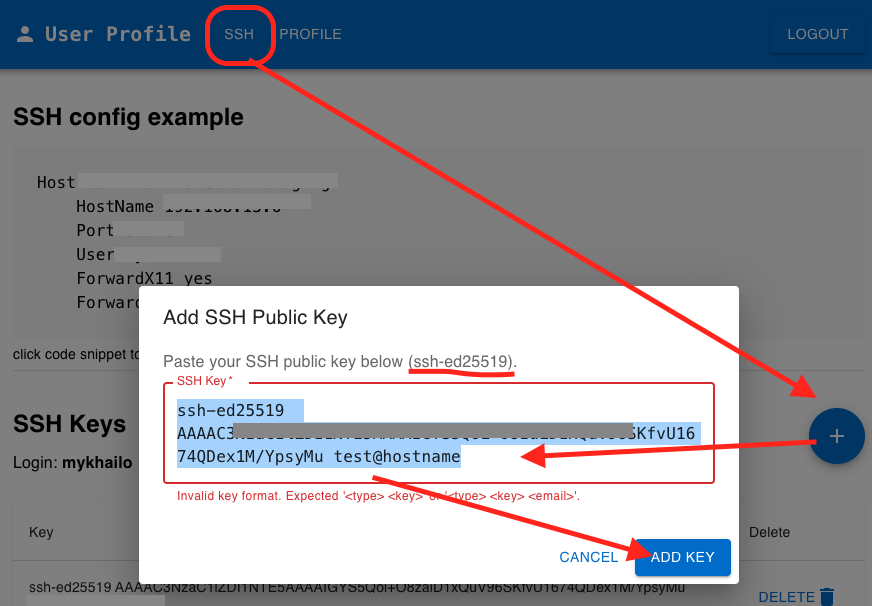
Add public key into your profile
Open User profile
Navigate to SSH page
Click “+” button
Paste Public key for pasting into OpenSSH authorized_keys file
Press “ADD Key”